Tips & Tricks2026-06-23ZP Technical Team
Fixing RDP Disconnection Issues: Network Detection via Group Policy
Resolve frequent Remote Desktop disconnections by enabling network detection through Group Policy. A step-by-step walkthrough for IT admins.
Step-by-Step Walkthrough
1. Open the Run Dialog
Hit the keys Win + R on your keyboard to open the Run dialog.
2. Launch the Group Policy Editor
Type the following in the run prompt and press Enter:
gpedit.msc
3. Navigate to the Network Detection Policy
Follow this path through the left-hand tree in the Group Policy Editor:
Local Computer Policy → Computer Configuration → Administrative Templates → Windows Components → Remote Desktop Services → Remote Desktop Session Host → Connections
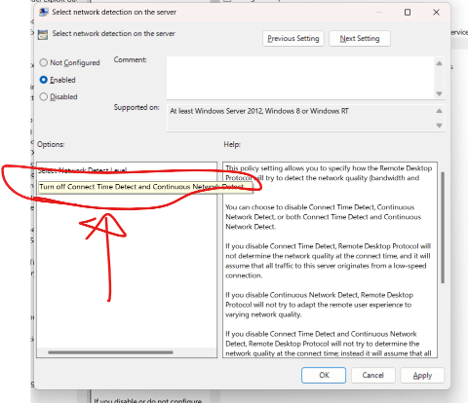
Once there, locate and double-click Select network detection on the server. Set it to Enabled, then set Turn off Connect Time Detect and Continuous Network Detect.
4. Apply the Policy Update
Open a Command Prompt and type:
gpupdate /force
5. Sign Out and Back In
Sign out and back in as needed.